

Documentation Index
Fetch the complete documentation index at: https://mintlify-mintlify-mcp-agent-awareness-1777587287.mintlify.app/llms.txt
Use this file to discover all available pages before exploring further.
Navigate files
Browse pages in the Navigation tab of the left panel. Click a page to open it. Click the search icon or press Cmd + K (macOS) or Ctrl + K (Windows) to search by filename or page content.API specification files (OpenAPI and AsyncAPI) are read-only in the web editor. To update a spec file, edit it in your preferred code editor and push the changes to your documentation repository.
Create new pages
- Click the plus button in the navigation element where you want to add a page.
- Click Add a page.
- Enter a filename. The editor adds the
.mdxextension automatically.
Edit content
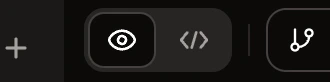
Switch between visual and Markdown mode with the toggle in the toolbar.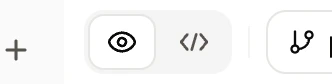
- Insert a link: Select text and press Cmd + K (macOS) or Ctrl + K (Windows), or drag a page from the navigation tree into the editor to create a link with the page title.
- Insert an emoji: Type : followed by a keyword to open the emoji picker.
- Edit a table: When your cursor is inside a table, use the floating toolbar to add or remove rows and columns, or merge cells.
API specification files (OpenAPI and AsyncAPI) are read-only in the web editor. Edit them in your code editor and push the changes to your repository.
Block actions
In visual mode, hover over any block to reveal a drag handle on the left. Click the handle to open a context menu with actions for that block:- Turn into: Convert the block to a different type—text, headings, blockquote, or list.
- Duplicate: Insert a copy of the block immediately after it.
- Delete: Remove the block.

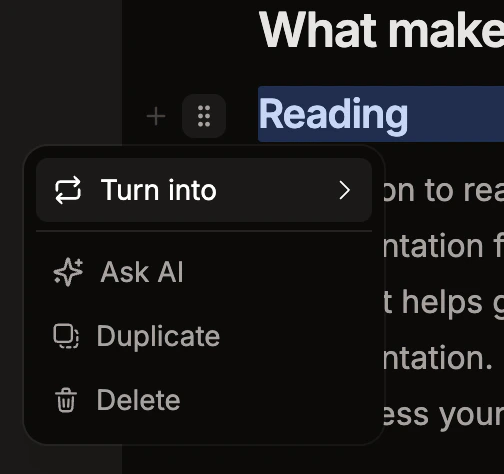
Table of contents
In visual mode, the editor shows a minimap on the right side of the page that reflects the heading structure of your document. Hover over the minimap to expand it into a full table of contents. Click any heading to scroll to that section.Code block options
When editing a code block in visual mode, you can:- Highlight or focus lines: Select text within the code block, then use the toolbar that appears to mark lines as highlighted or focused. Highlighted lines are visually emphasized; focused lines dim everything else.
- Mark diff lines: Select lines and use the toolbar to mark them as additions (
+) or removals (-). - Wrap: Toggle line wrapping in the code block settings.
- Expandable: Make the code block collapsible so readers can expand it on demand.
Review changes before publishing
Open the publish menu and click any changed file to enter diff view. The editor highlights differences between your draft and the last published version. If you’re in visual mode, you see a visual diff; if you’re in Markdown mode, you see a Markdown diff. Diff view is read-only. Click the button next to the mode toggle to return to editing.Manage pages
- Move: Drag and drop pages to reorder them in navigation.
- Rename: Right-click a page and select Rename.
- Duplicate: Right-click a page and select Duplicate.
- Delete: Right-click a page and select Delete. The page is removed from navigation automatically.
Pages deleted via Git
If a teammate deletes a page through Git while you have it open, the editor enters read-only mode and shows a banner. Your content is preserved so you can copy it before navigating away.Configure pages
Hover over a page and click the gear icon, or right-click and select Settings, to configure:- Title, Slug, and Sidebar title: Control how the page appears in navigation and its URL.
- Description and Keywords: Improve search and SEO.
- Layout: Choose from standard, wide, centered, or custom.
Add media
Images and videos
Type /image to upload a new image or select an existing one from your repository. Type /video to upload or select a video. You can also drag and drop files from your computer directly onto a page. In visual mode, the file inserts inline. In Markdown mode, the editor inserts the file path at your cursor position. Images save to yourimages/ folder and videos to videos/.
Light and dark image variants
After inserting an image in visual mode, hover over it to reveal the image toolbar. Use Light/dark variants to upload separate images for light and dark mode.Embed external media
- YouTube: Type /youtube and paste the video URL.
- Loom: Type /loom and paste the video URL.
- Vimeo: Type /vimeo and paste the video URL.
- Custom HTML: Type /embed and switch to Manual embed.